Taming the Fan Noise on My Bosgame P3 Plus Mini PC
The Bosgame P3 Plus was brought in as a compact workstation to run some automations, scheduled pipelines, and the occasional remote session without demanding a dedicated rack or a noisy tower. On paper, it earns that role. It runs an AMD Ryzen 7 7840HS (Zen 4, 4nm, 8 cores / 16 threads, boosting to 5.1 GHz), paired with 32 GB of DDR5 dual-channel RAM, a 1 TB PCIe 4.0 NVMe SSD, integrated AMD Radeon 780M graphics — all in a 121.9 × 111.8 × 40.6 mm chassis running Windows 11 Pro. Early on, it delivered exactly that: silent, responsive, and unobtrusive. The first stretch of daily use was genuinely trouble-free.
The problem surfaced after roughly a week of sustained workload — automation scripts, browser tabs, a remote desktop session running in parallel. The fan would ramp up to a level that was impossible to ignore: not a gentle hum, but a high-pitched whine that cut through the office environment. The Ryzen 7 7840HS has a configurable TDP range of 35–54 W, and in its default state the P3 Plus pushes it toward the upper end under any meaningful load. Before assuming this was purely a hardware limitation, the right approach was to rule out software-side contributors — specifically a memory leak, which can cause steadily rising resource pressure that forces the CPU and cooling system to work harder over time.
HWiNFO64 (free from hwinfo.com) is the right tool for this investigation.
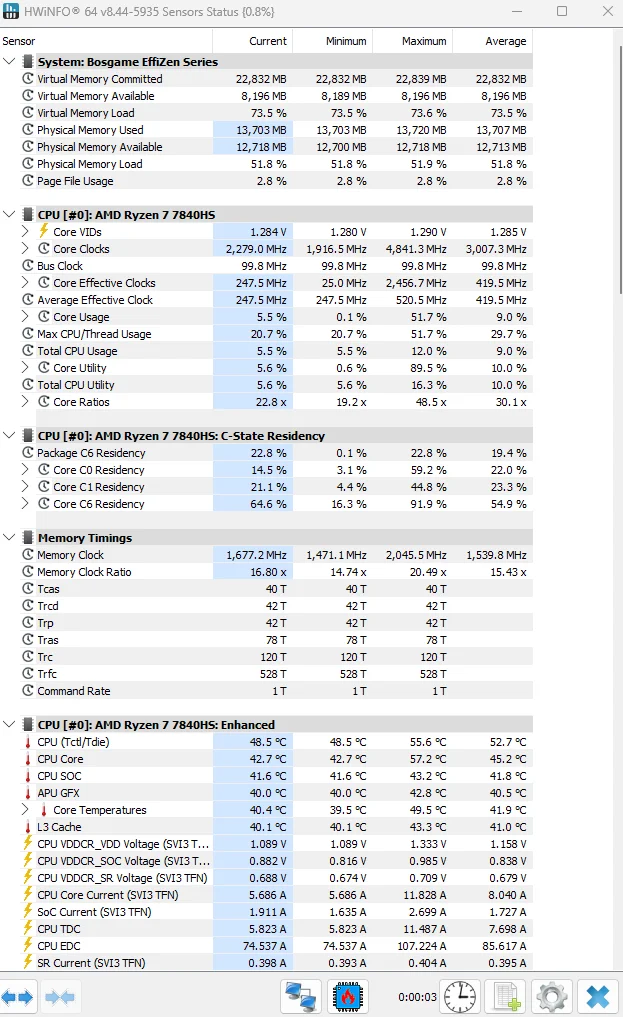 Run it as Administrator, select Sensors-only mode, and let it sit in the background during a normal workload. Enable logging immediately via File → Start Logging so you have a timestamped record to review. The sensors to watch closely on this machine are: CPU Package Power — the 7840HS should idle around 10–15 W and spike during bursts, but sustained readings above 45 W under a routine workload signal something is keeping the processor unnecessarily busy; CPU (Tdie) Temperature — anything consistently above 85 °C will force the fan to maximum RPM; Physical Memory Load (%) — open Task Manager alongside HWiNFO and sort processes by memory, then watch whether total usage climbs steadily over 30–60 minutes without a corresponding increase in active work (a classic memory leak signature); Committed Memory in the Performance tab of Task Manager, which should remain relatively flat — a rising committed value that never drops back is confirmation of a leak; and NVMe SSD Temperature, which should stay below 70 °C. In the test environment, memory utilization was climbing roughly 2–3 % every 20 minutes during a session. Identifying and terminating the offending background processes (in this case, an automation service with a known leak in an older build) brought utilization back to a stable baseline and reduced sustained CPU load noticeably. HWiNFO alone will not fix anything, but it tells you exactly where to look.
With the software side addressed, the next step was the BIOS. Enter the P3 Plus BIOS by pressing Delete repeatedly during boot (some firmware revisions respond to F2). Navigate to the Advanced tab, then AMD CBS (Common BIOS Settings). Under Setup Menu → Advanced, you will find Power Limit Select. There are three options: Quiet Mode, Balance Mode, and Performance Mode. Switch it to Quiet Mode. Switch it to Quiet (also labeled Silent depending on firmware version): this raises the temperature threshold at which the fan ramps up, trading a slightly higher steady-state temperature for meaningfully lower RPM noise. Save with F10 and reboot. The audible result was immediate — fan noise under equivalent workloads dropped substantially. It was no longer jarring. That said, under a sustained heavy pipeline run, the fan still became noticeable. The BIOS changes are a genuine improvement, not a complete solution.
The change that made the most practical difference was the simplest: an external cooling fan. The unit chosen was the X3 — a 140 mm, 11-blade USB fan with a hydraulic bearing, rated at 850 RPM and 18 dB, pushing 65.8 CFM of airflow. It is bus-powered over USB with a built-in one-touch switch, requires no drivers, and the anti-vibration feet handle up to 44 lbs. It is not a premium product, and it does not need to be. Placed beneath the P3 Plus, it solves two problems simultaneously: the elevated platform breaks the surface seal between the chassis bottom and the desk, restoring the passive airflow the design depends on, and the fan actively draws heat away from the base before it builds up inside the enclosure. The internal fan, no longer fighting accumulated heat, rarely needs to ramp above its idle speed during normal business workloads. The difference is not subtle — the machine runs perceptibly cooler and the fan noise has been reduced to a level that is genuinely easy to forget about.
Summary: What Actually Helped
| Step | Impact | Notes |
|---|---|---|
| HWiNFO64 diagnostics | Moderate | Identified a memory leak driving sustained CPU load — fixing the root cause reduced baseline heat |
| BIOS: Switch Power Limit Select → Quiet Mode | Noticeable | Fan ramps up later and less aggressively — clear improvement under moderate load |
| X3 cooling fan | Most impactful | Improved passive and active airflow; internal fan barely audible during normal business use |
The honest takeaway: BIOS tuning and software hygiene are worth doing and they compound each other, but the external cooling fan is what crosses the threshold from "improved" to "not a problem anymore." If you are running a P3 Plus or any compact mini PC in a work environment and fan noise is affecting your focus, start the X3 at the same time you open HWiNFO — do not treat it as a last resort.